Pricing
A rate card holds the prices a quote is built from: the seasons you sell, the nightly rate per room occupancy, and tiers that adjust the price by hotel standard.
Creating a rate card
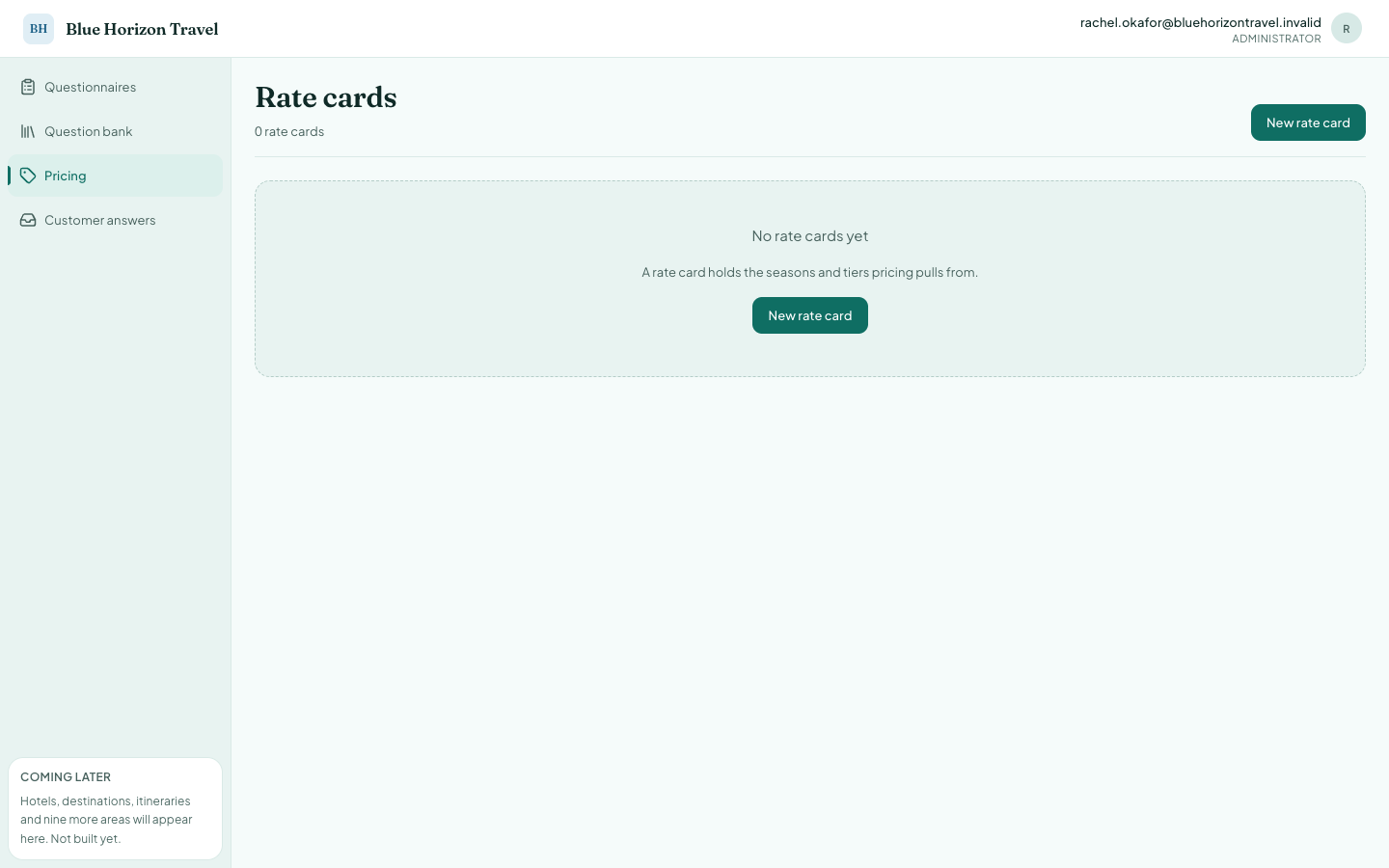
Press New rate card.
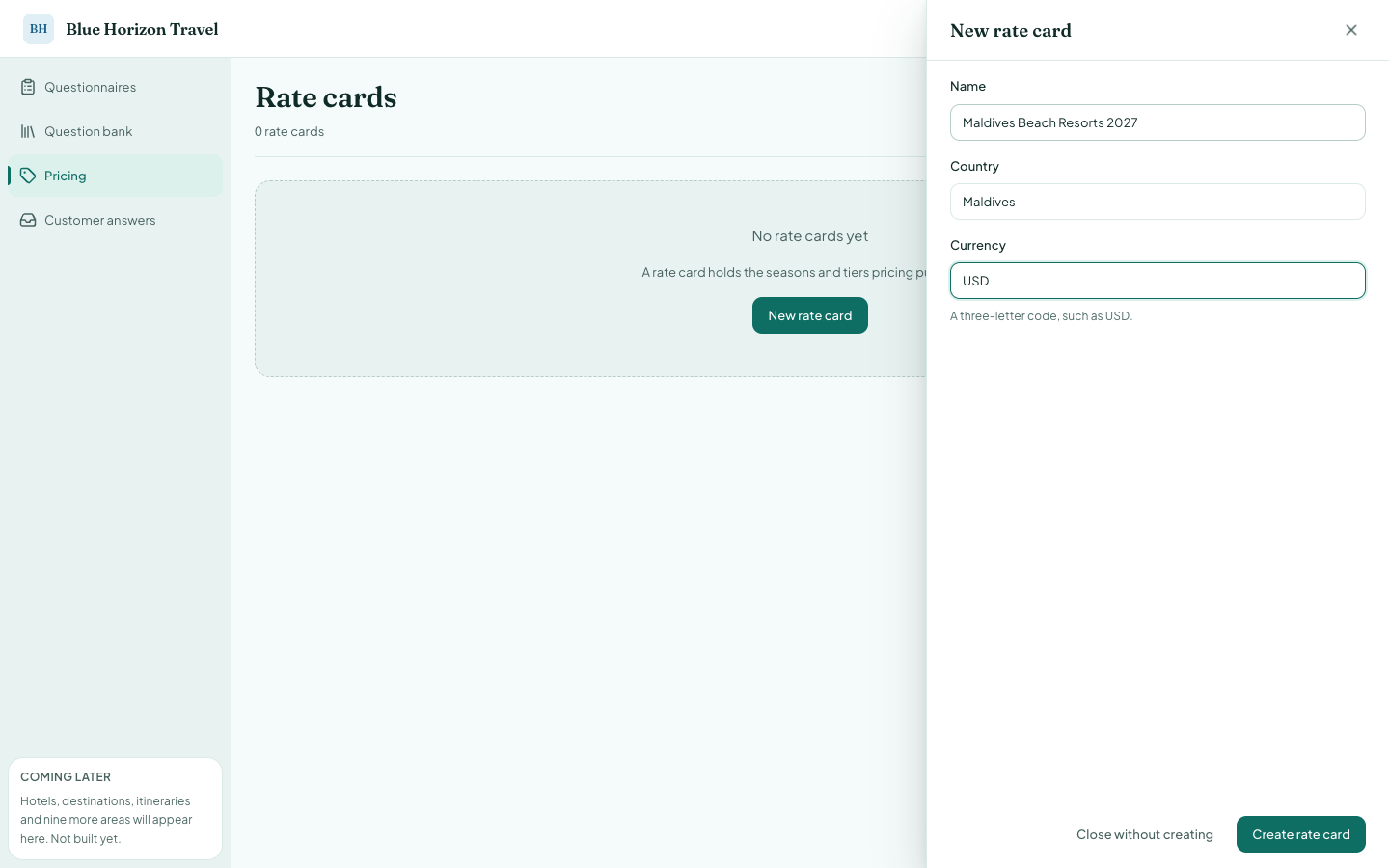
| Field | What to put in it |
|---|---|
| Name | How you will recognise it, e.g. "Maldives Beach Resorts 2027" |
| Country | The destination country |
| Currency | A three-letter code such as USD |
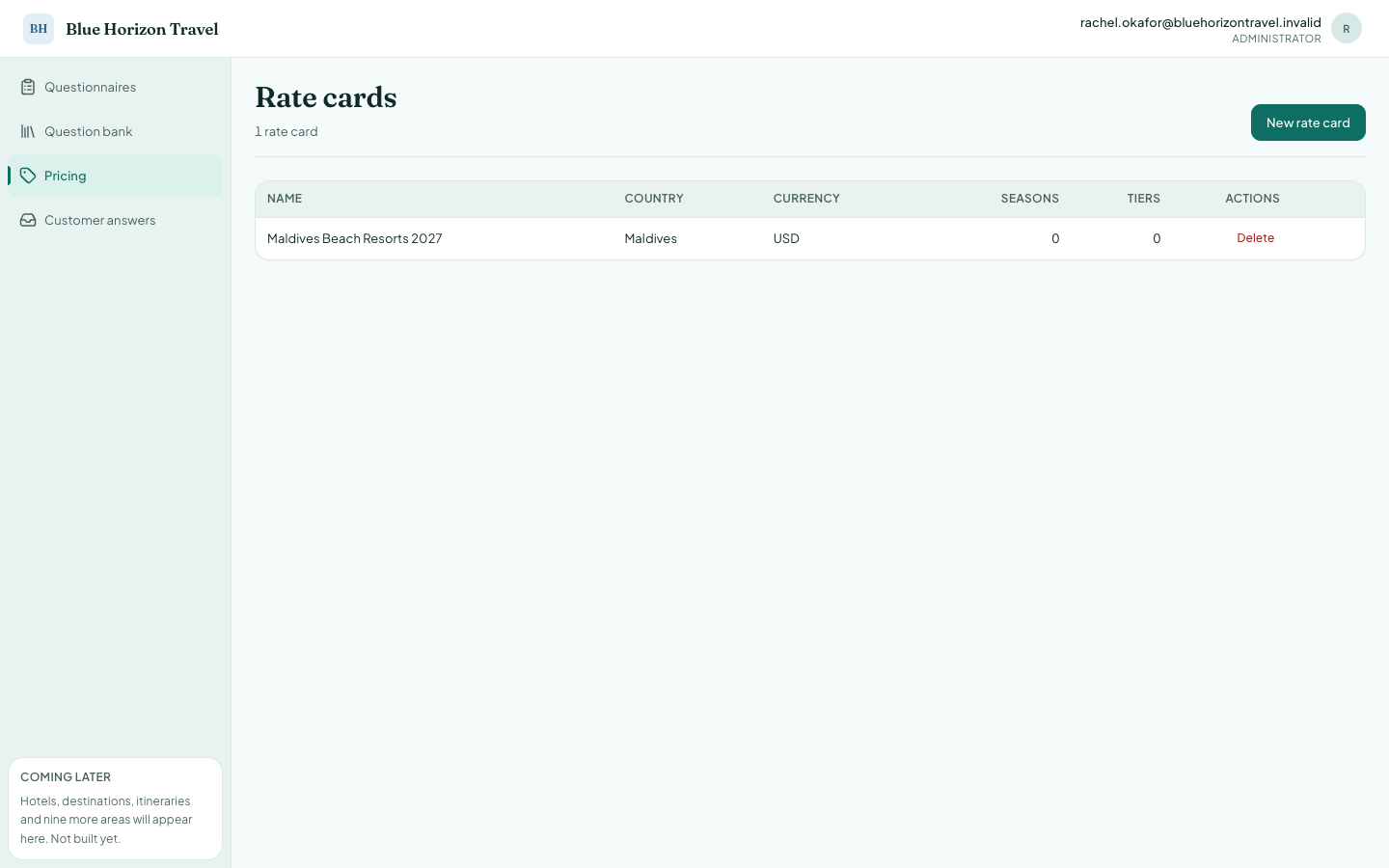
Press Create rate card. It appears in the list with no seasons and no tiers yet.
Seasons and tiers
Open the rate card to fill it in. There are two tables.
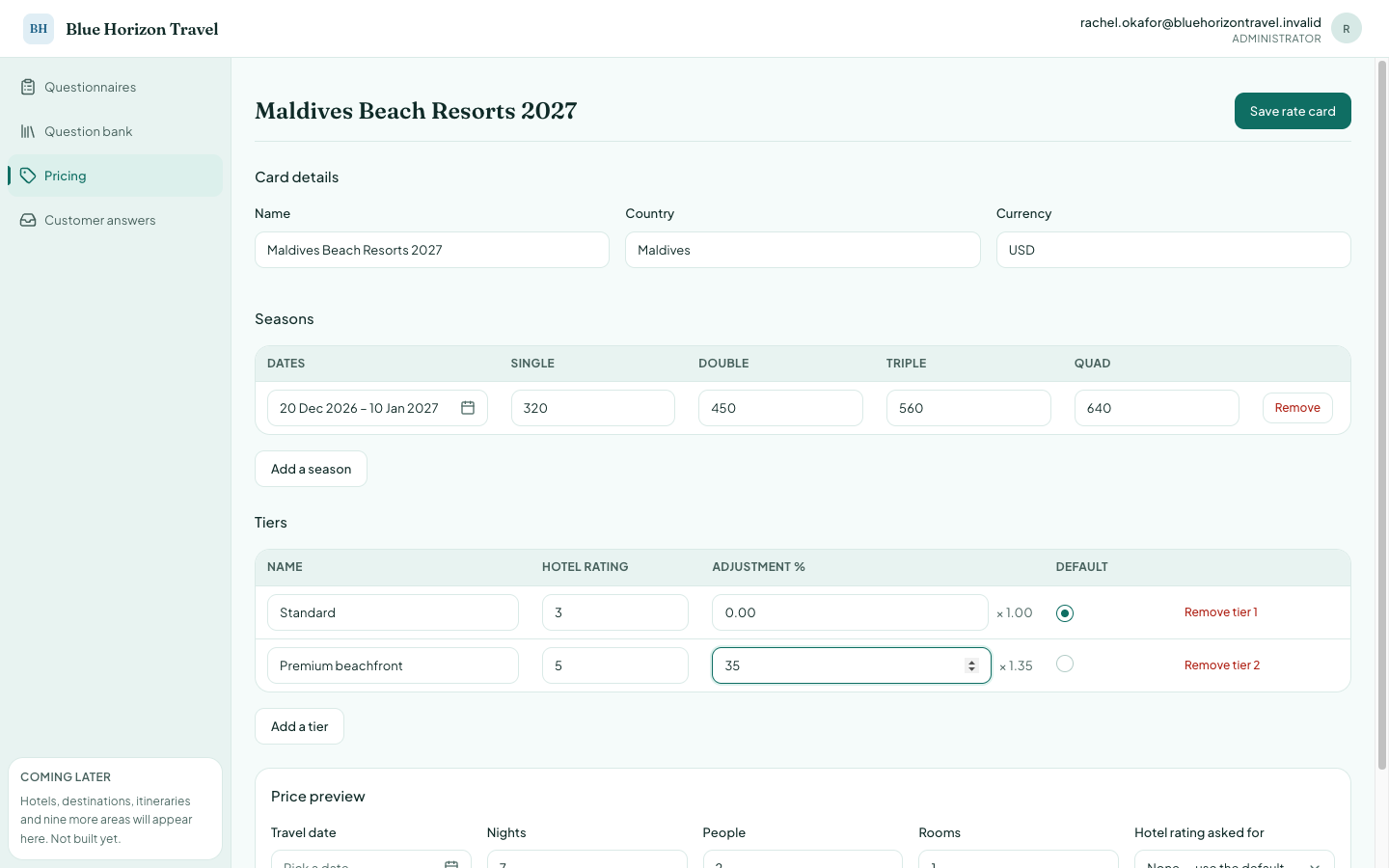
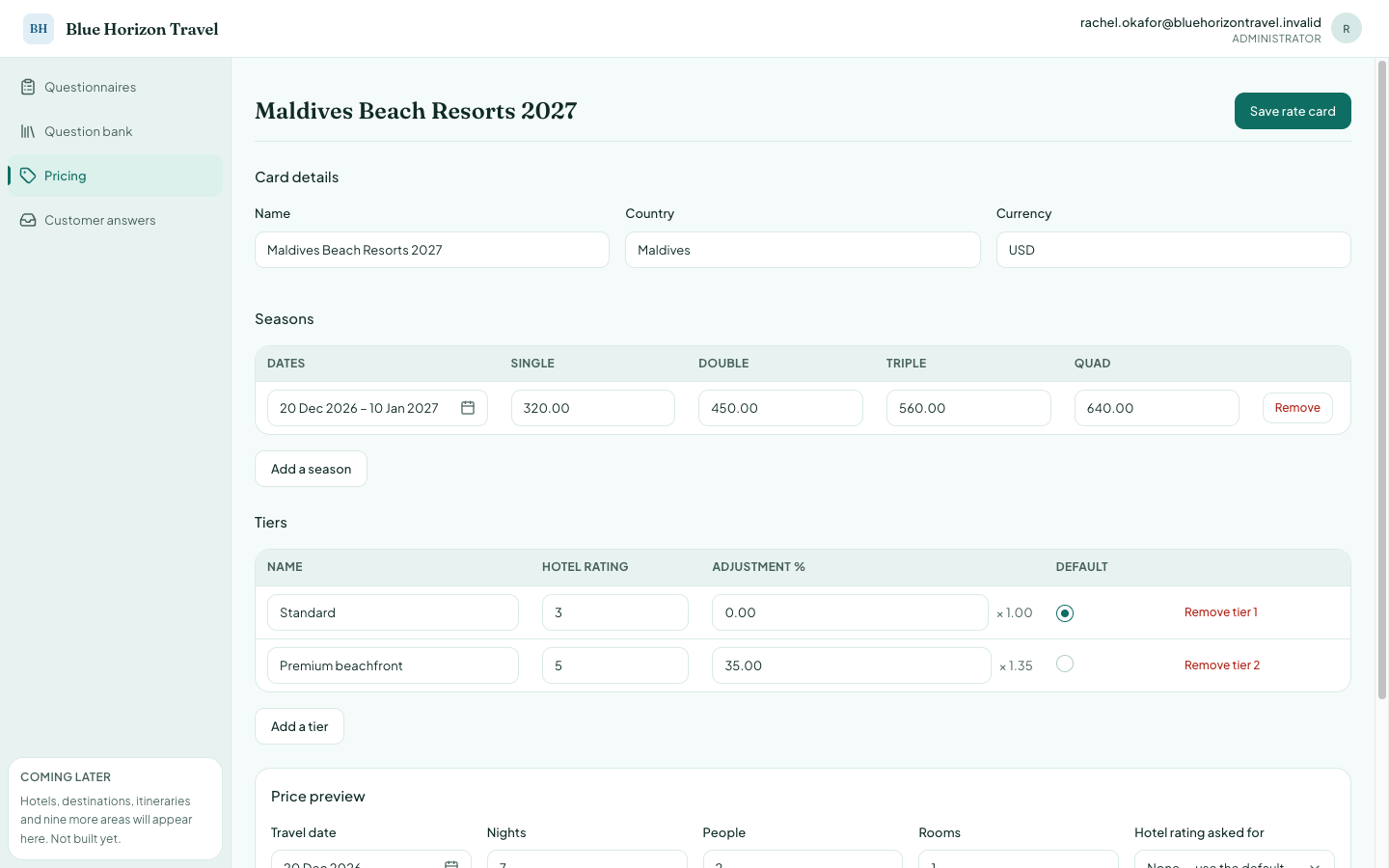
Seasons carry the nightly rate for a date range, one column per room occupancy — Single, Double, Triple, Quad. Press Add a season, pick the date range, then type the nightly rate for each occupancy.
Tiers adjust that rate by hotel standard. Each tier has a name, a hotel rating
and an adjustment percentage. One tier is the default — the one used when a
traveller expresses no preference. The screen shows the multiplier beside the
percentage, so 35 reads as × 1.35.
In this example:
- One season, 20 Dec 2026 – 10 Jan 2027, at 320 / 450 / 560 / 640 per night.
- Standard — 3-star, no adjustment, the default.
- Premium beachfront — 5-star,
+35%.
Press Save rate card. The values stay as you left them.
Checking a price before you publish it
The Price preview at the bottom is the fastest way to be sure your rates are right. Enter a travel date, nights, people and rooms, and it shows what a traveller would actually be quoted, for every tier.
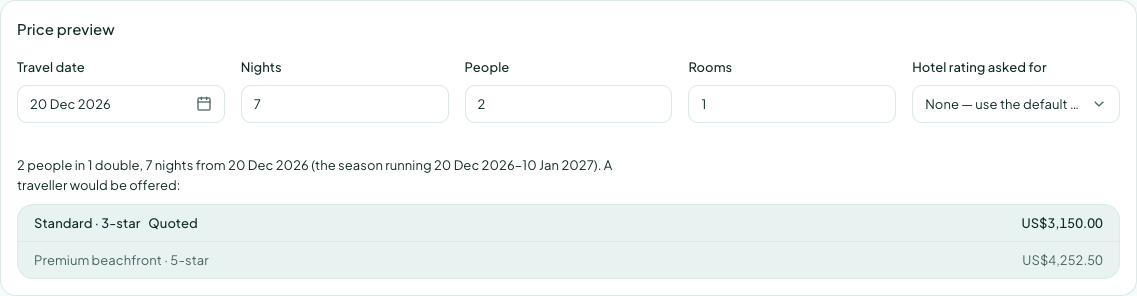
Here, 7 nights for 2 people in one double room from 20 Dec 2026:
| Tier | Quoted |
|---|---|
| Standard · 3-star | US$3,150.00 |
| Premium beachfront · 5-star | US$4,252.50 |
Check the arithmetic against your own figures: 7 nights × $450 for a double is $3,150, and $3,150 × 1.35 is $4,252.50. The line above the prices also confirms which season was matched, which is useful when a date falls near a season boundary.
Use this every time you change a rate. A wrong nightly rate is invisible in the table and obvious in the preview.