Publishing
Before you publish
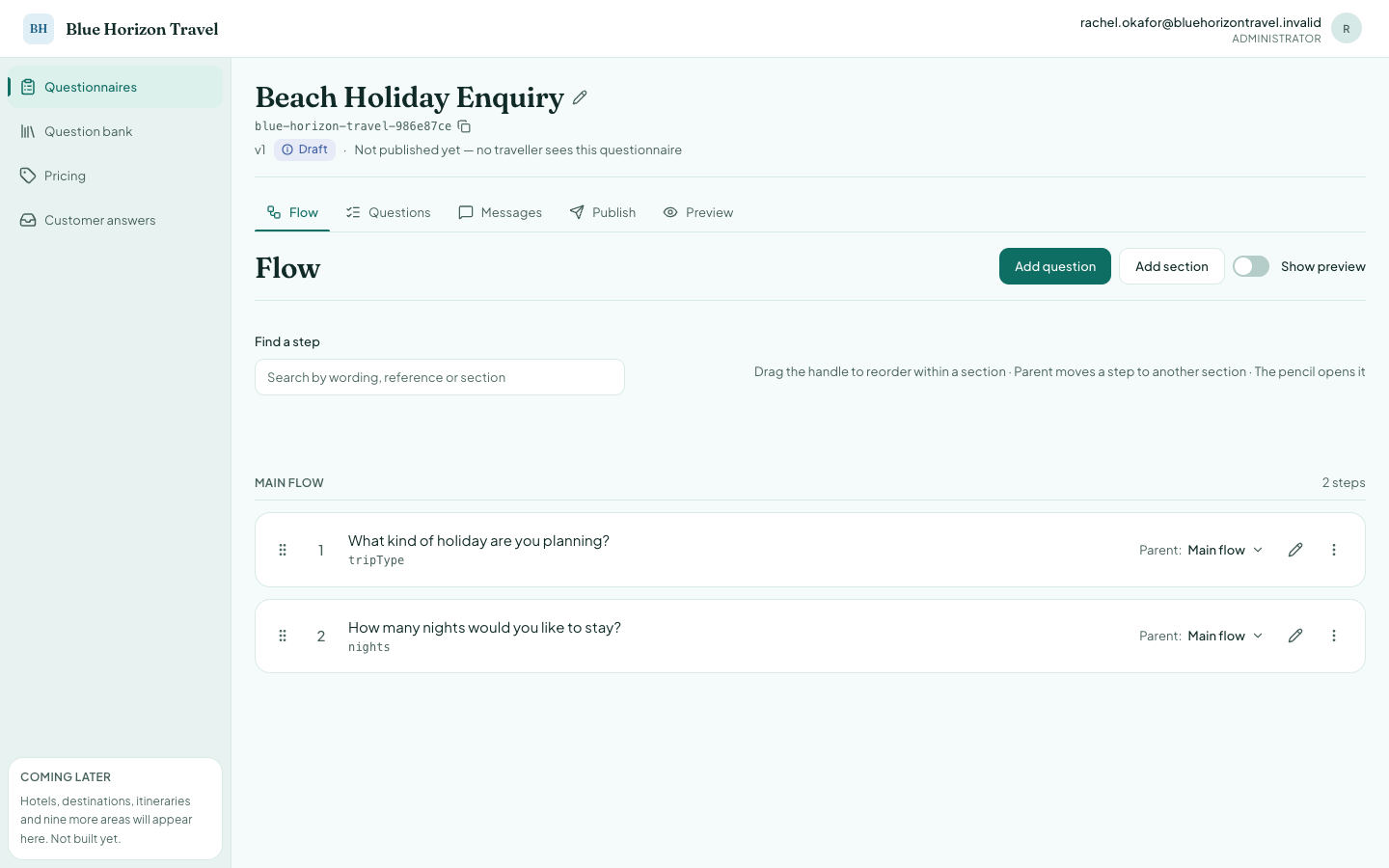
Check the questionnaire as a traveller will meet it. Two questions in the flow look like this:
The Questions tab is the quicker check of the two. It lists every question in the version with its type, reference, how many options it has, and where it sits in the flow.
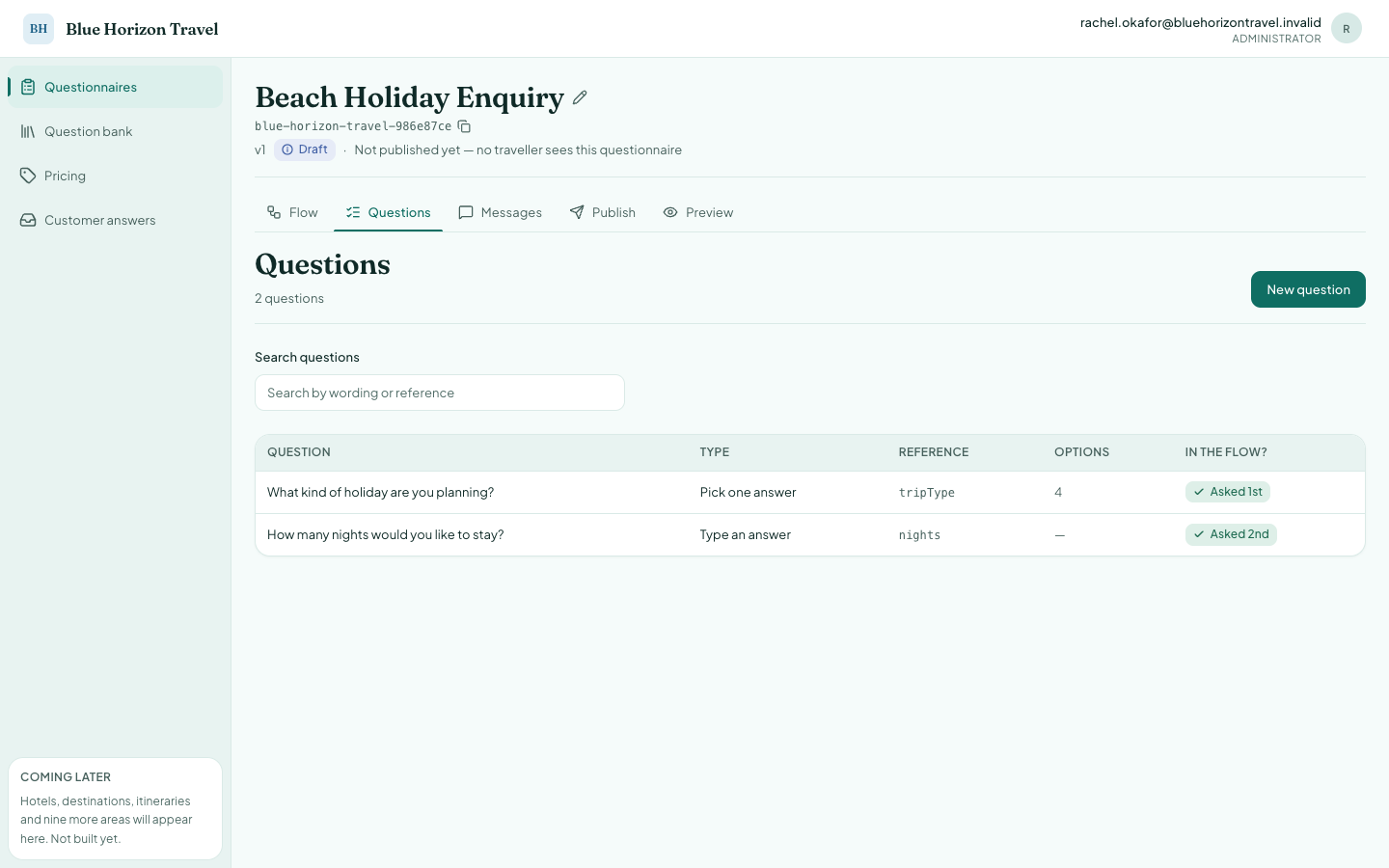
Read the Options column. A question of type Pick one answer showing 0 options has nothing for the traveller to choose, and the traveller cannot get past it. Add its options before publishing: the traveller would otherwise see the question and nothing to click, and the conversation would stop there.
The Messages tab
Messages are the wording around the questions.
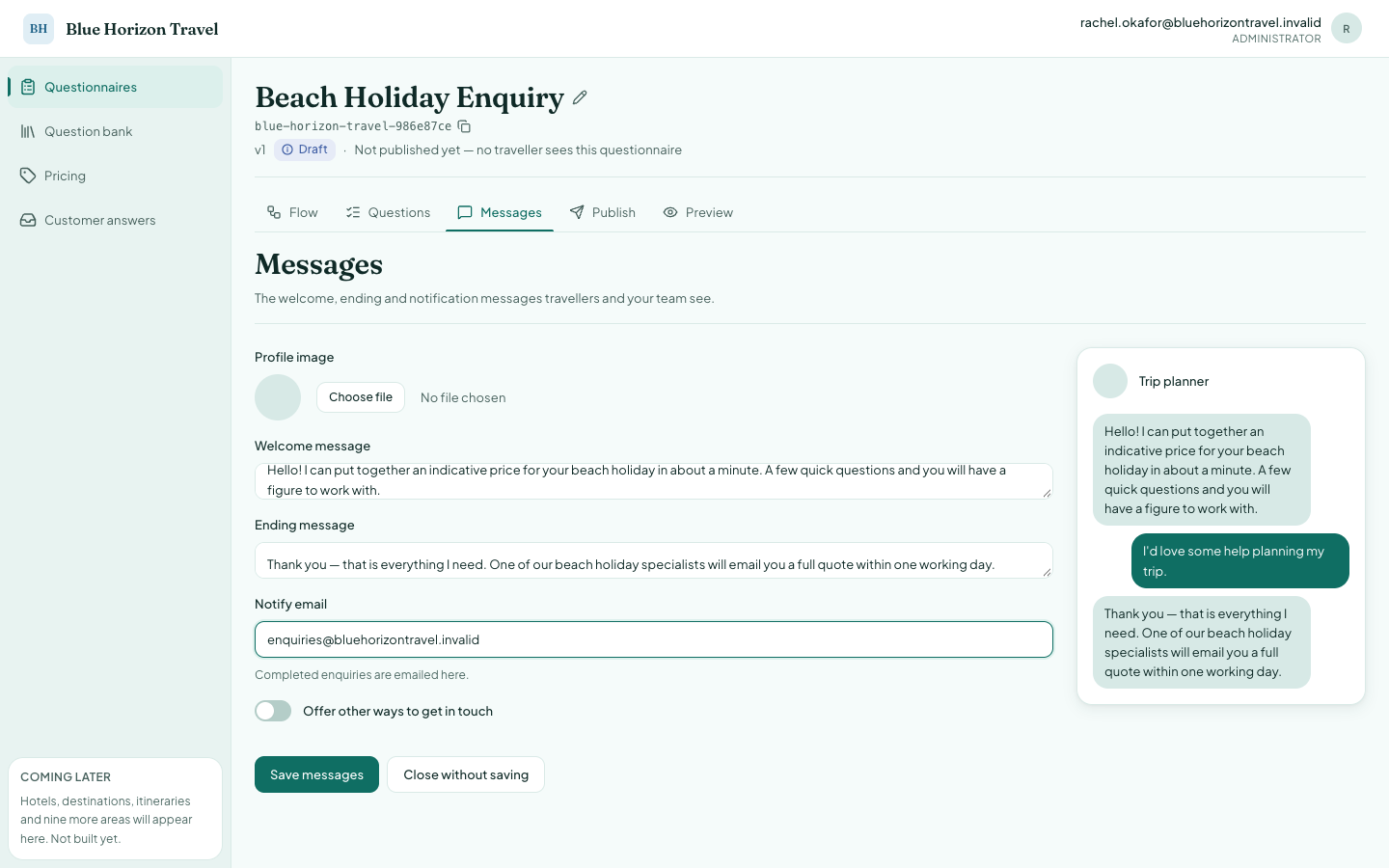
| Field | What it is |
|---|---|
| Profile image | The picture beside the chat messages |
| Welcome message | The greeting before the first question |
| Ending message | What the traveller reads once they have finished |
| Notify email | Where completed enquiries are emailed |
Press Save messages. These appear in the widget straight away for anyone starting a new conversation on a published version.
Sending it live
The Publish tab checks the draft, then takes it live.
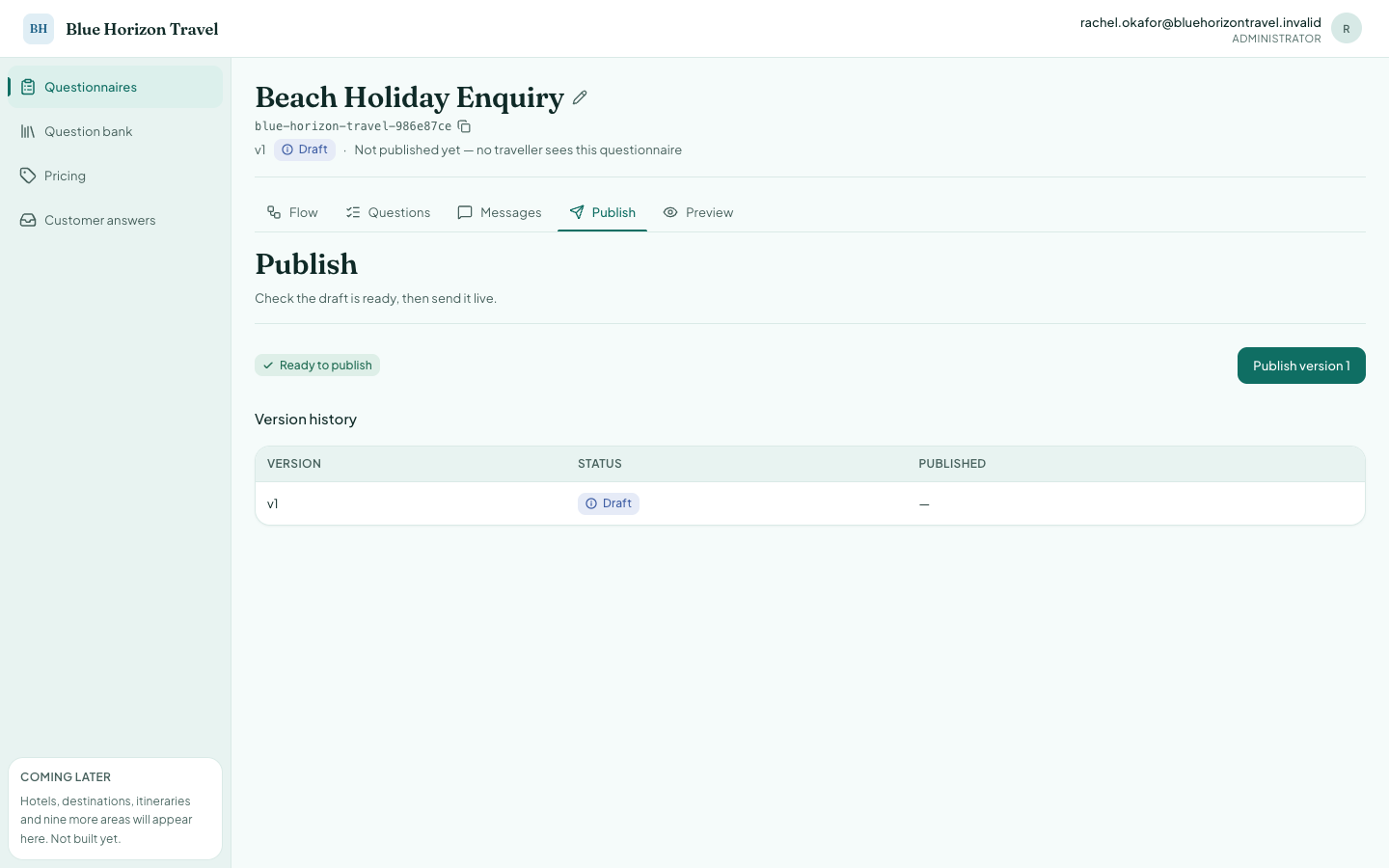
When the draft passes, it reads Ready to publish. Press Publish version 1 and you are asked to confirm.
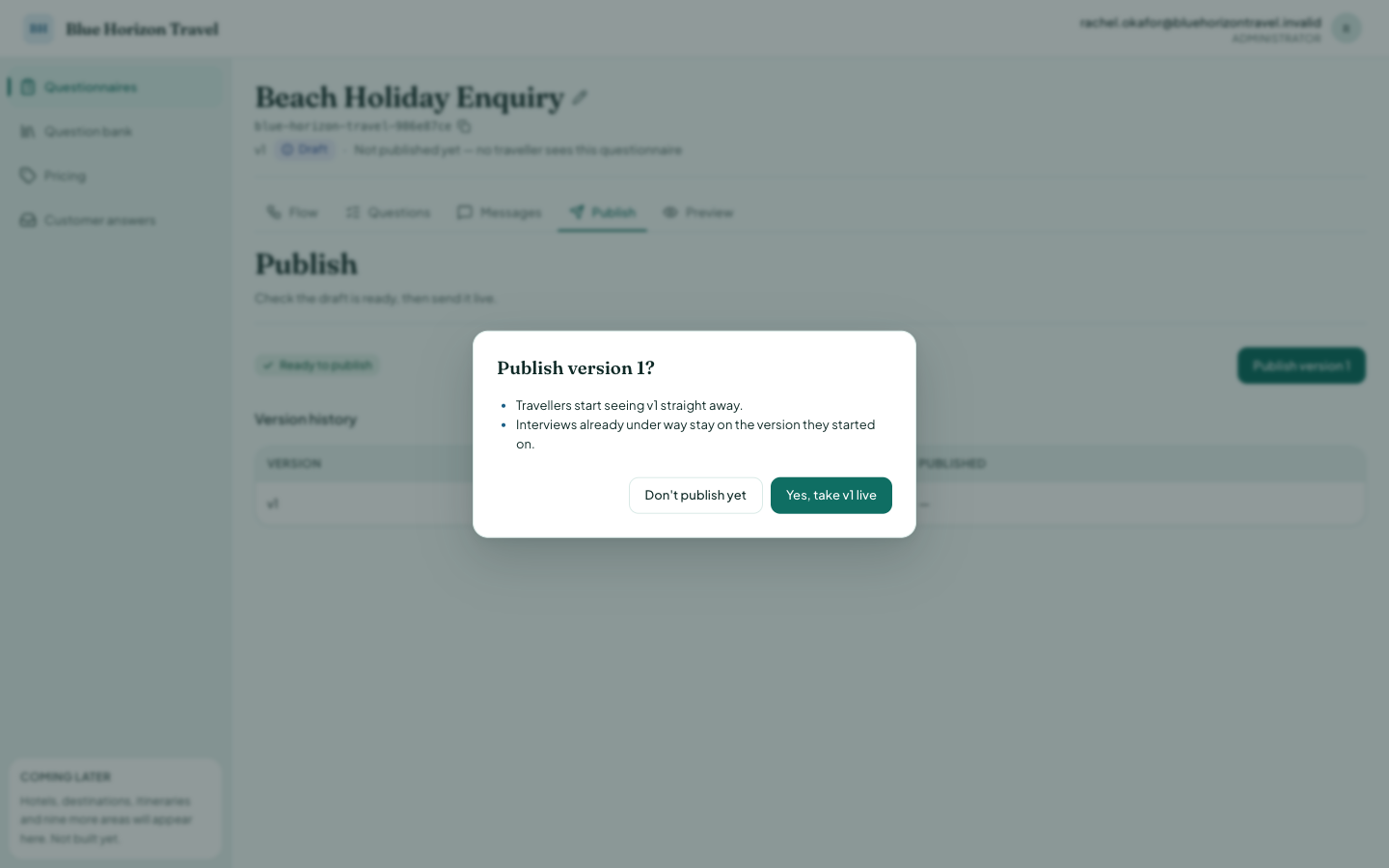
Read the two lines in that box, because they answer the question operations staff ask most often:
- Travellers start seeing the new version straight away.
- Interviews already under way stay on the version they started on. Nobody is interrupted mid-conversation by your publish.
Confirm, and the version is live.
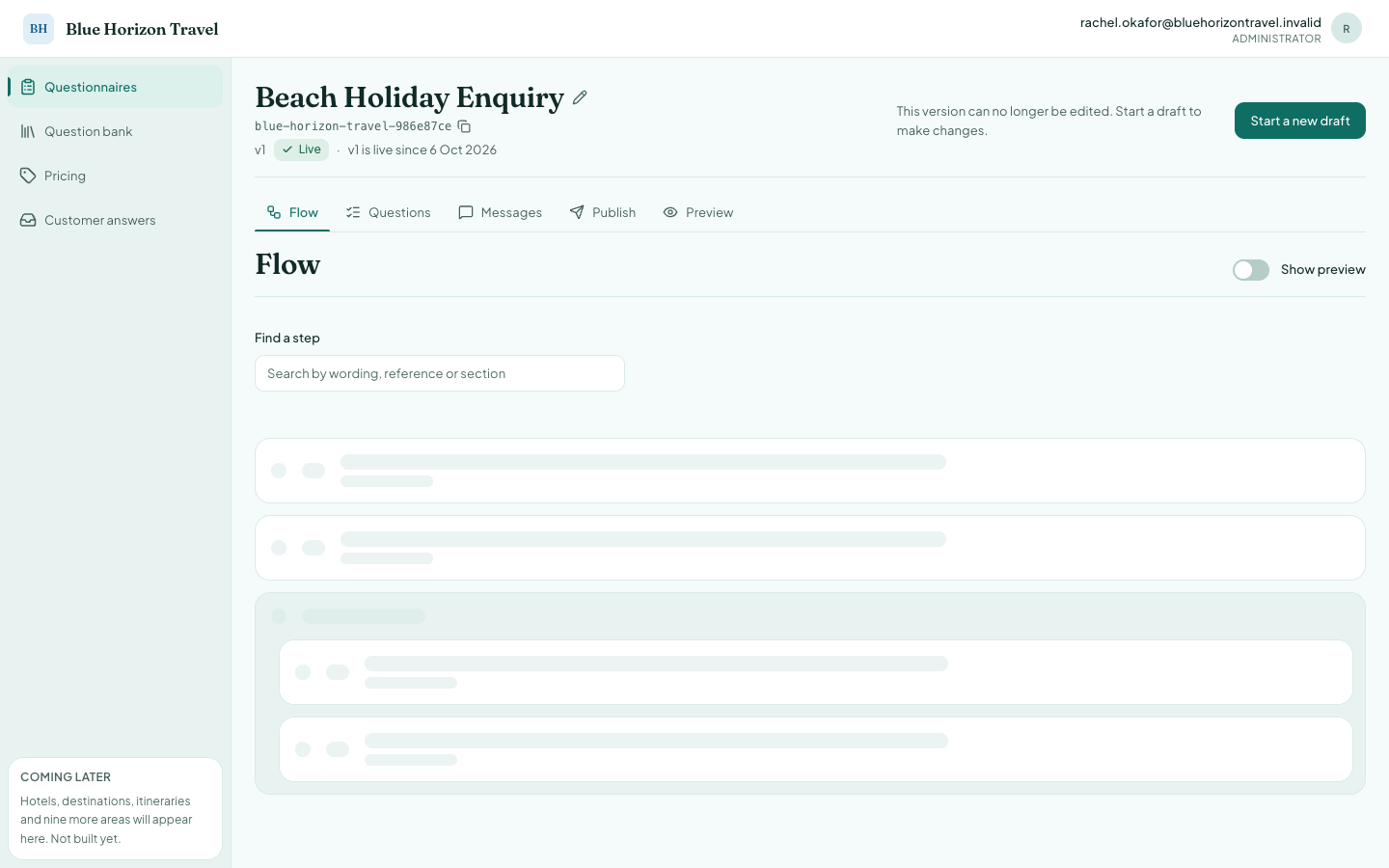
A published version cannot be edited
This is the single most important rule on this page:
Once a version is live, every field in it is read-only. To change anything you press Start a new draft, which copies the live version into a new one you can edit.
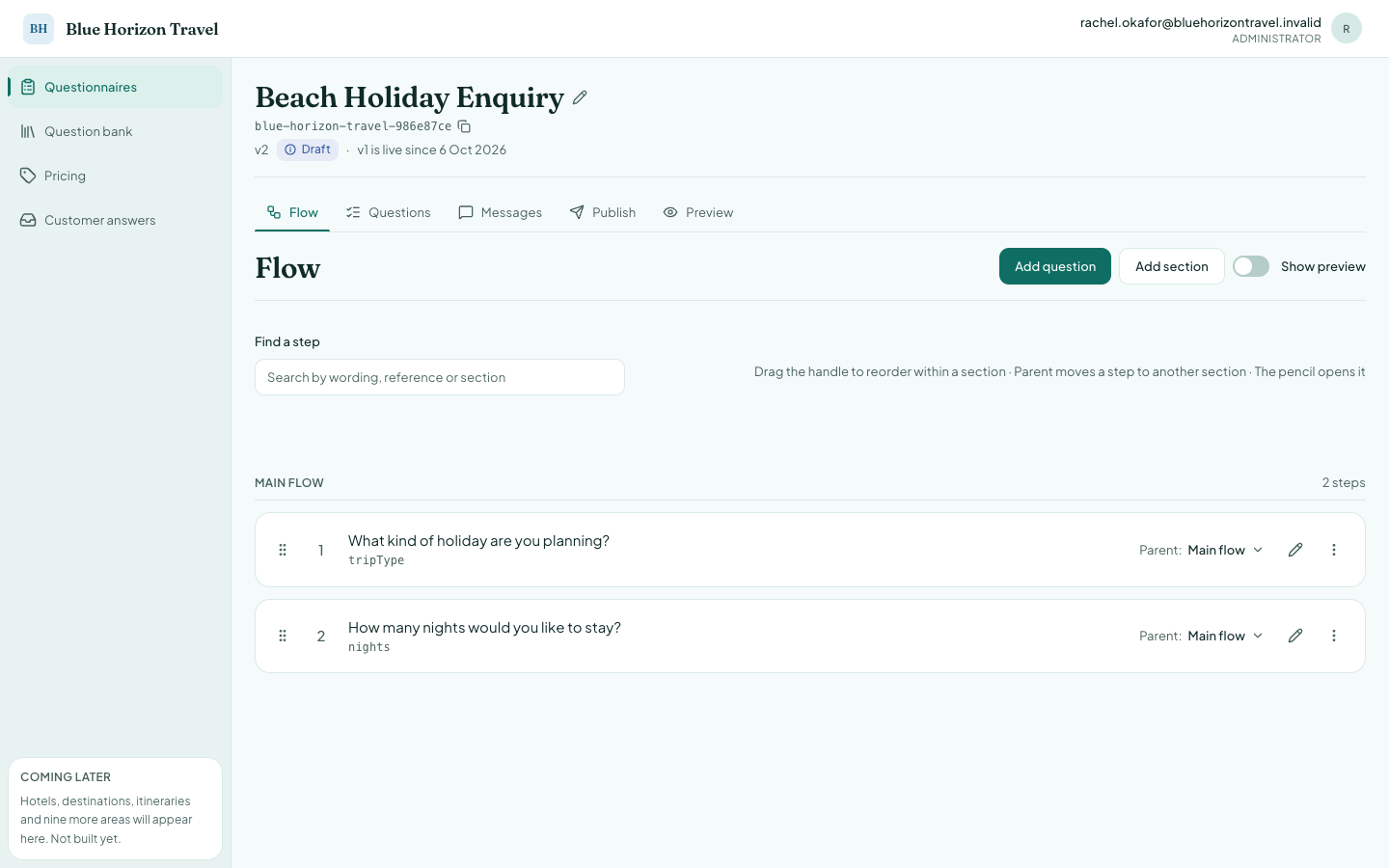
While you edit the draft, the live version keeps serving travellers untouched. The header shows both states at once: v2 Draft · v1 is live since 4 Oct 2026.
Publishing the second version archives the first, and the confirmation says so.
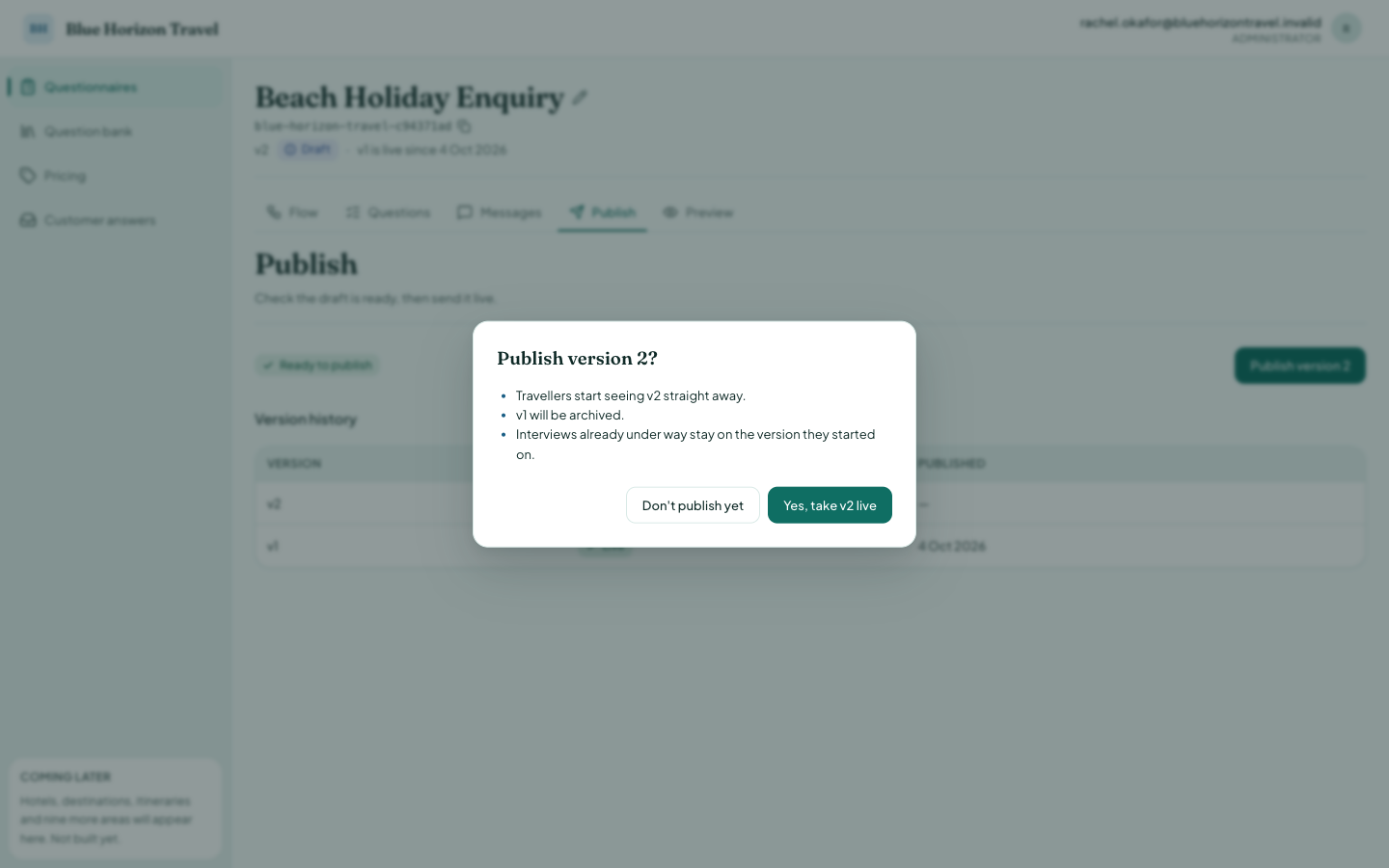
The practical consequence: a mistake in a live version stays live until you have built and published a replacement. There is no undo and no quick edit. This is why the Questions tab is worth a minute before you publish, not after.
Putting the widget on your website
Open the Preview tab. It shows the embed code and runs the real widget beside it.
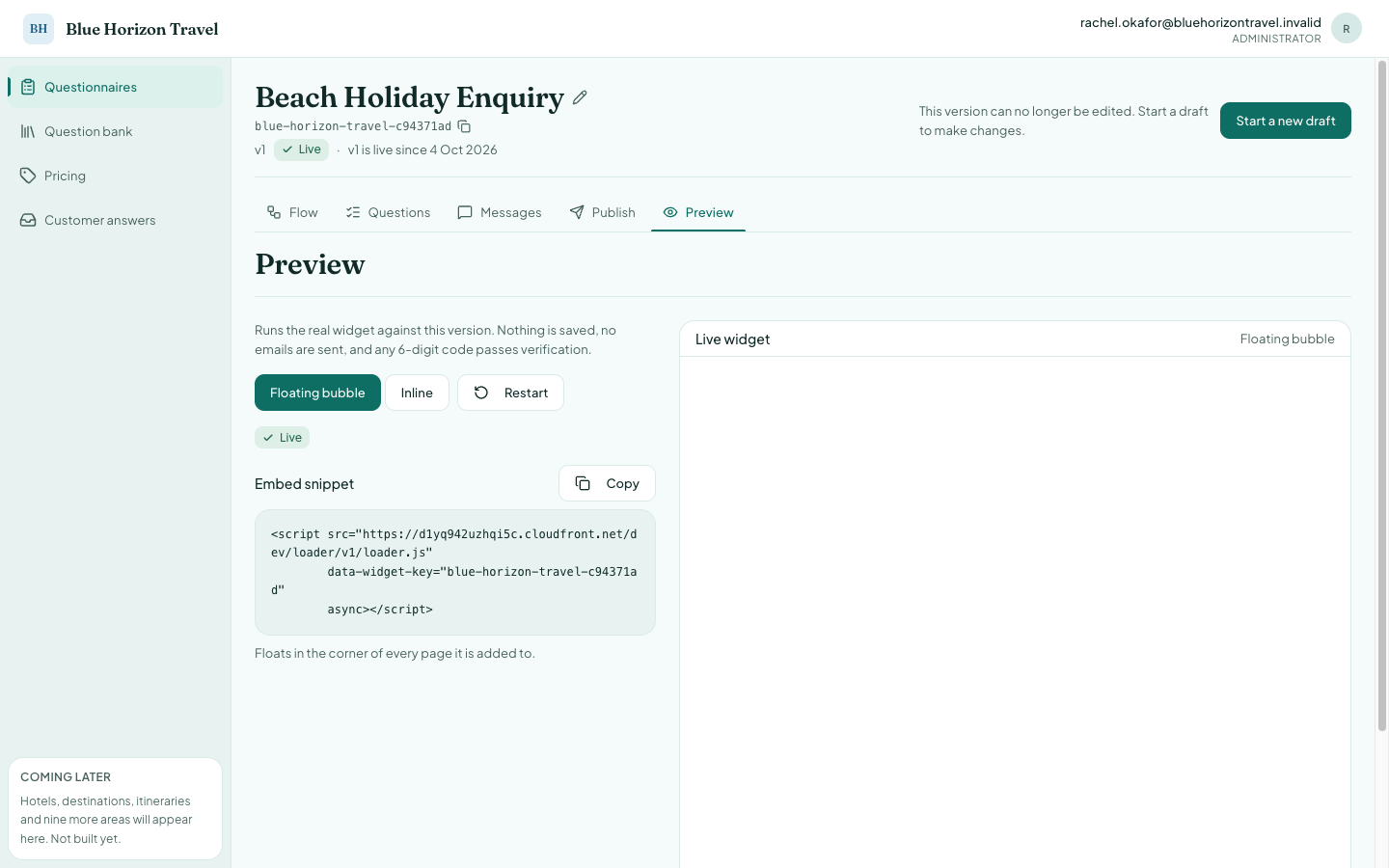
Press Copy under Embed snippet and send that line to whoever maintains your website. There are two placements:
| Mode | Where it appears |
|---|---|
| Floating bubble | A button in the corner of every page it is added to |
| Inline | Fills a chosen area of one page, like a form |
The questionnaires list carries the same Copy embed code button, so you do not have to open a version to fetch it.
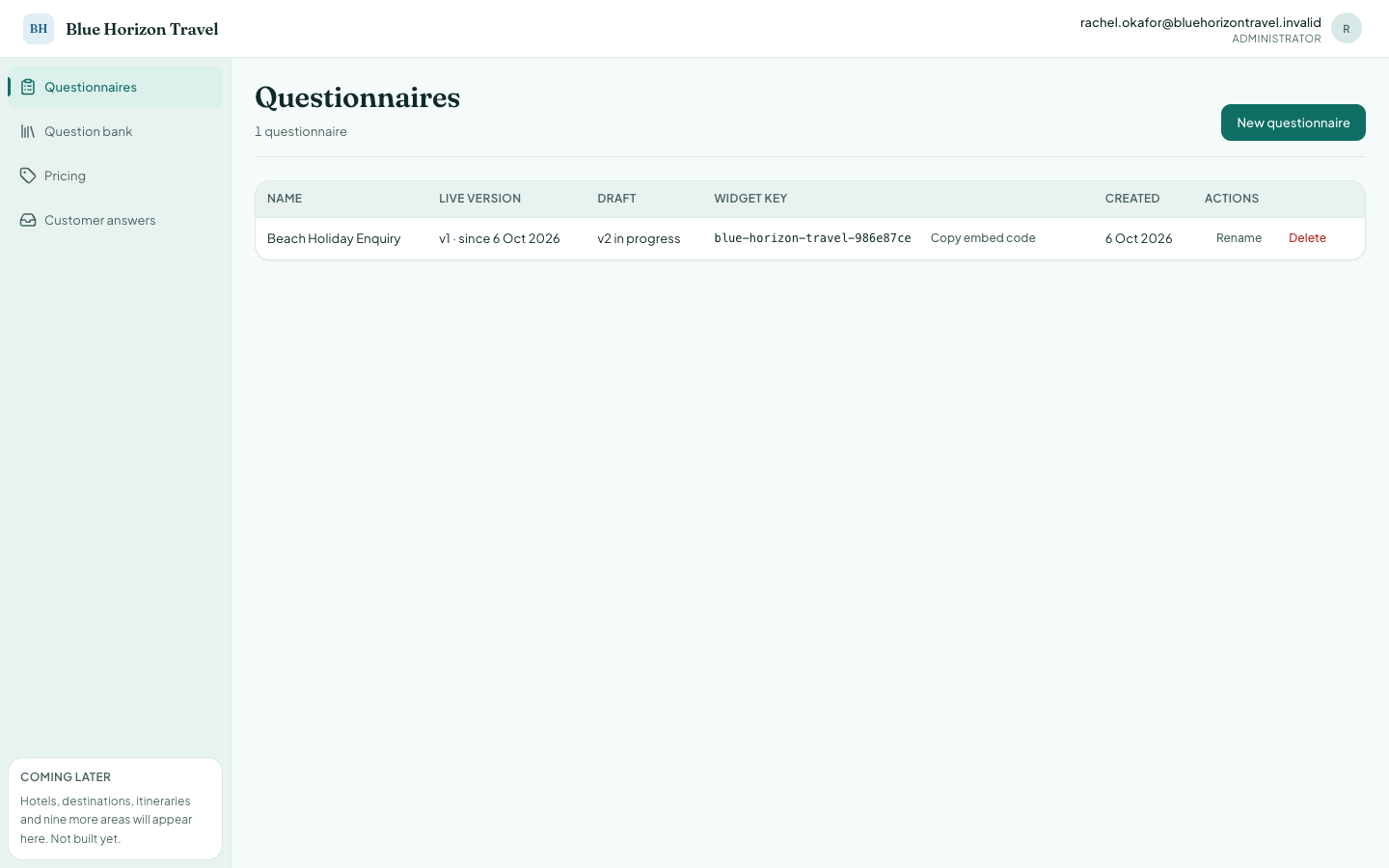
The snippet never changes when you publish a new version. Your website is embedded once; from then on, publishing is the only step.
The preview is safe. As the note on the tab says: nothing is saved, no emails are sent, and any 6-digit code passes verification. Use it freely.